Add a Data Source
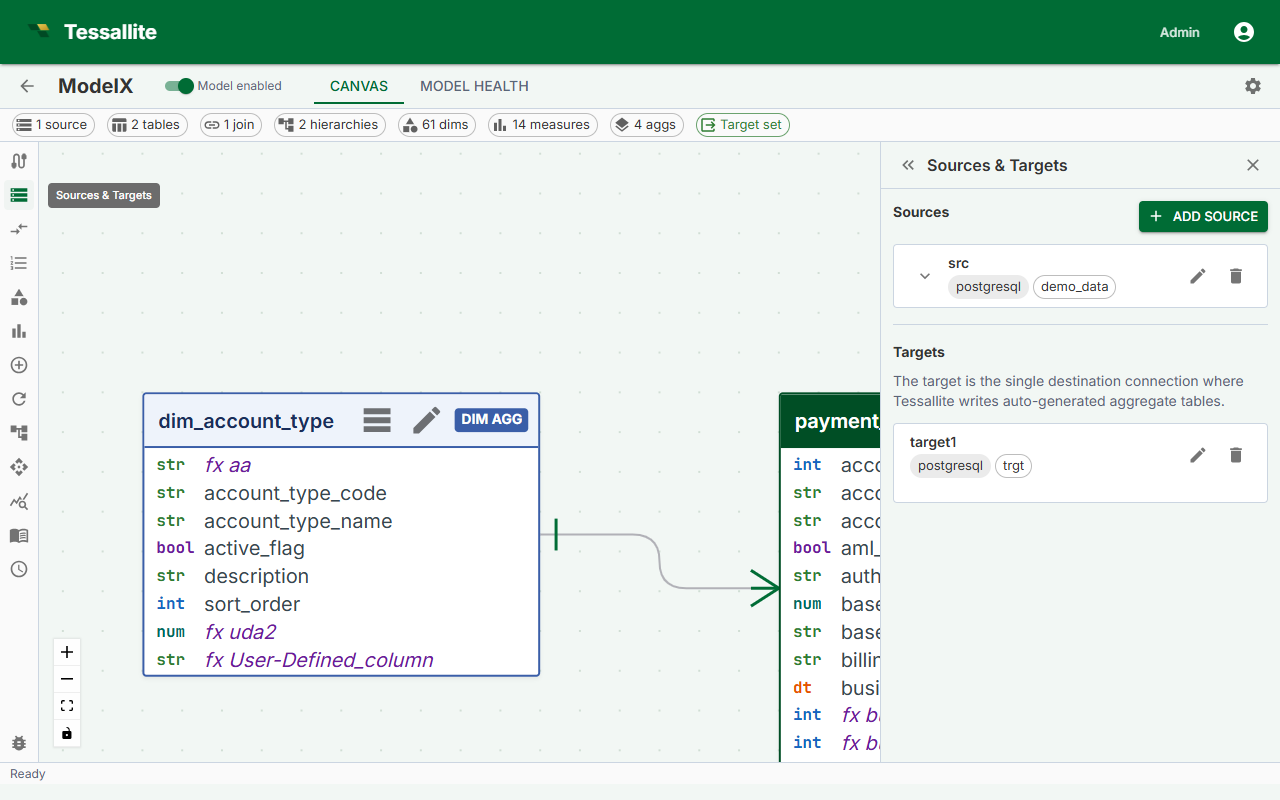
What this covers
Each Tessallite project connects to exactly one data source. This article explains how to view or change the data source connection from the project Settings panel, describes the connection parameters for each supported source type, and lists common connection failure causes and remedies.
Steps
- Open the project from the workspace dashboard.
- Click the Settings tab at the top of the project page.
- Locate the Data Source section. The current source type and connection parameters are shown.
- To change the source type, select a new type from the Source type dropdown and fill in the parameters.
- Click Test Connection to verify.
- Click Save to apply the change.
Warning: Changing the source type after tables have been added to the model will invalidate all table references. You must remove all existing tables and re-add them from the new source before the model can be used.
Connection parameter reference
PostgreSQL
| Parameter | Required | Notes |
|---|---|---|
| Host | Yes | Hostname or IP of the PostgreSQL server. |
| Port | Yes | Default is 5432. |
| Database | Yes | The database name containing your schemas and tables. |
| User | Yes | Database user with SELECT access on the target schemas. |
| Password | Yes | Stored encrypted; never shown in plain text after saving. |
BigQuery
| Parameter | Required | Notes |
|---|---|---|
| Project ID | Yes | The GCP project ID that owns the BigQuery dataset (e.g. my-gcp-project). This is stored in the connection credentials and used to qualify table names as project_id.dataset.table_name. |
| Service account JSON | Yes | Full JSON key file. Account must have bigquery.dataViewer and bigquery.jobUser roles. For calendar auto-create, the account also needs bigquery.dataEditor. |
| Allow Tessallite to run DDL | No | Checkbox under connection settings. Required for calendar auto-create. Without it, you must run the DDL manually and bind the table. |
When adding a BigQuery source to a model, the Dataset field specifies which BigQuery dataset to expose. Tessallite uses the project ID from the connection credentials and the dataset from the source configuration to build fully qualified table references: project_id.dataset.table_name. Identifiers with hyphens (common in GCP project IDs like my-company-prod) are automatically backtick-quoted in generated SQL.
Amazon Redshift
| Parameter | Required | Notes |
|---|---|---|
| Host | Yes | Redshift cluster endpoint. |
| Port | Yes | Default is 5439. |
| Database | Yes | Redshift database name. |
| User | Yes | Redshift user with SELECT access. |
| Password | Yes | Stored encrypted; never shown in plain text after saving. |
Uses the same asyncpg driver as PostgreSQL (Redshift is wire-compatible). No additional installation required.
Snowflake
| Parameter | Required | Notes |
|---|---|---|
| Account | Yes | Snowflake account identifier (e.g. xy12345.us-east-1.aws). |
| Username | Yes | Snowflake user. |
| Password | Yes | Stored encrypted; never shown in plain text after saving. |
| Database | Yes | Snowflake database name. |
| Schema | No | Default schema. Defaults to PUBLIC. |
| Warehouse | Yes | Compute warehouse for query execution. |
| Role | No | Session role (optional). |
Requires snowflake-connector-python. See Supported Data Sources for installation instructions.
Hadoop / Spark Thrift Server
| Parameter | Required | Notes |
|---|---|---|
| Thrift Server host | Yes | Hostname or IP of the HiveServer2 or Spark Thrift Server endpoint. |
| Port | Yes | Default is 10000 for HiveServer2, 10001 for Spark Thrift Server. |
| Database | Yes | The Hive or Spark database (schema) name. |
SQL Server
| Parameter | Required | Notes |
|---|---|---|
| Host | Yes | Hostname or IP of the SQL Server instance. |
| Port | Yes | Default is 1433. |
| Database | Yes | SQL Server database name. |
| Username | Yes | SQL Server login. |
| Password | Yes | Stored encrypted; never shown in plain text after saving. |
| Schema | No | Default schema. Defaults to dbo. |
| ODBC Driver | No | Driver name. Defaults to ODBC Driver 17 for SQL Server. |
| Encrypt | No | Encrypt the connection to SQL Server using TLS. |
| Trust Server Certificate | No | Accept self-signed certificates (non-production only). |
Requires aioodbc and an ODBC driver installed on the host. See Supported Data Sources for driver installation instructions.
What Test Connection checks
The test asks the gateway to authenticate against the source using the parameters you entered. It confirms:
- The host is reachable from the gateway's network.
- The port is open and the database service is listening.
- The credentials are accepted.
- For BigQuery: the service account JSON is valid and has sufficient permissions.
A successful test does not validate that specific schemas or tables exist.
Test Connection runs through the same query path as table discovery and profiling. Tessallite does not open your source database from the settings page itself.
Large catalogues and BigQuery profiling
The Sources panel lists up to about 500 tables (and about 50 BigQuery datasets). If your catalogue is larger, a banner explains that the list is incomplete — filter by schema to see the rest. The incomplete listing is a warning, not a table you can add to the model.
When you classify or profile a BigQuery table, Tessallite uses approximate distinct counts and the dataset __TABLES__ metadata for row counts. It does not run a billed COUNT(*) full table scan for that profile step.
Common connection failures
| Error | Likely cause | Remedy |
|---|---|---|
| Connection timed out | Host not reachable; firewall or VPC block. | Allow the gateway's outbound IP through the source's firewall rules. |
| Connection refused | Database service not running on specified port, or wrong port. | Verify port number and confirm the database service is running. |
| Authentication failed | Wrong credentials or expired service account key. | Re-enter credentials. For BigQuery, generate a new key in the GCP console. |
| Database does not exist | Misspelled database name or user lacks access. | Confirm the database name and access grant. |
| Permission denied | User can connect but lacks SELECT on target schema. | Grant SELECT on the relevant schemas and tables. |
Schema search and filter
The table list in the Sources panel includes a search field that filters tables and columns as you type. This is useful when your source has hundreds of tables and you need to find a specific one.
- Search by table name: Type part of the table name (e.g.
order) to show only tables whose names contain the search term. - Search by column name: The search also matches column names within tables. A table appears in the filtered list if any of its columns match the search term.
- Match count indicator: The count next to the search field shows how many tables match the current filter.
- Clear search: Click the X button or clear the text to return to the full table list.