Connect a BI Tool via JDBC
What this covers
Connecting a JDBC-compatible BI tool — Tableau, Power BI, DBeaver, or any PostgreSQL-compatible client — to a Tessallite workspace using the JDBC endpoint on port 5433.
Before you start
- Role required: Analyst (Viewer) or higher.
- You will need: the workspace slug, your email address, and your password.
- You will also need: the host address and port of the Tessallite gateway, obtained from your system administrator.
- The gateway JDBC port is
5433. For local installs, the host islocalhost. For cloud installs, your system administrator provides the hostname. - On GCP, JDBC requires a TCP load balancer. If your system administrator has not configured one, use the XMLA connection (Excel or Power BI) instead.
Connection details
| Setting | Value |
|---|---|
| Host | localhost (local install) or the hostname provided by your system administrator (GCP) |
| Port | 5433 |
| Database | Your workspace slug (e.g. acme) |
| Username | Your email address (e.g. analyst@acme.com) |
| Password | Your Tessallite password |
| SSL | Not required for local installs |
The workspace slug is the identifier for your tenant. It is case-sensitive. If you are uncertain of the slug, ask your system administrator.
Scoping the connection to one model. The Database field also accepts two longer forms when you want the connection to open on a specific model instead of the whole workspace:
acme/sales— workspace slug plus a model slug.acme/finance/sales— workspace, project, and model slug, useful when two projects contain models with the same name.
If the model or project you name does not exist, the connection is refused with a message that tells you the accepted formats, so a typo is easy to spot.
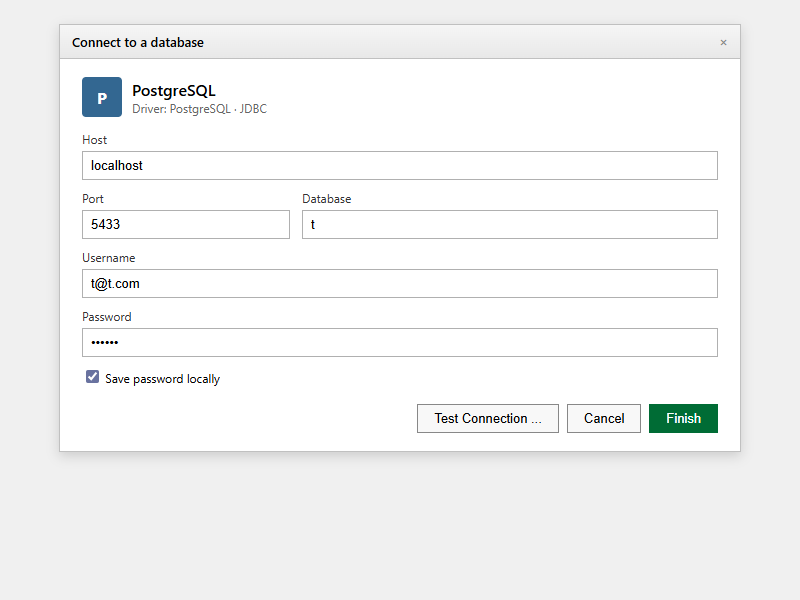
Connecting with DBeaver
- Open DBeaver.
- Click New Database Connection (the plug icon in the toolbar).
- In the connection type list, select PostgreSQL.
- Enter the Host, Port, Database, Username, and Password using the values from the table above.
- Click Test Connection. A confirmation dialog should appear.
- Click Finish.
- The connection appears in the left panel. Expand it to see the available tables. Each model published in the workspace appears as a schema.
Connecting with Tableau
- Open Tableau Desktop.
- In the Connect pane on the left, select PostgreSQL.
- Enter the server address in the Server field.
- Enter
5433in the Port field. - Enter the workspace slug in the Database field.
- Enter your email address in the Username field and your password in the Password field.
- Click Sign In.
- The tables for the selected workspace are available in the data source pane.
Connecting with psycopg2 or other drivers
Pass the following connection parameters to your driver:
host=<hostname>
port=5433
dbname=<workspace-slug>
user=<your-email>
password=<your-password>
Any PostgreSQL-compatible driver accepts these parameters directly.
What you see after connecting
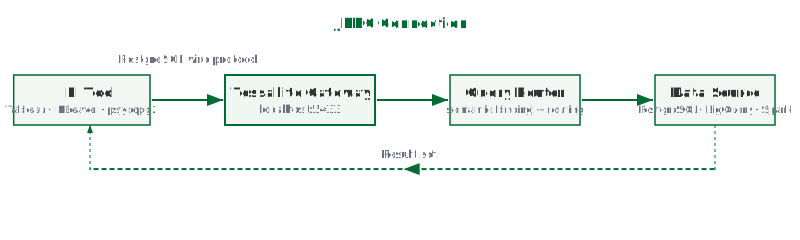
Each model published in the workspace appears as a schema. Within each schema, the dimensions and measures defined in the model are listed as columns. Querying them returns results immediately. Tessallite routes the query to the fastest available source — a pre-aggregated summary if one exists, or the raw data source otherwise.
Troubleshooting
| Symptom | Likely cause | What to do |
|---|---|---|
| Connection refused on port 5433 | Gateway is not running | Ask your system administrator to check the gateway service |
| Authentication failed | Wrong slug, email, or password | Check all three fields exactly — the slug is case-sensitive |
| No tables visible | No models exist in the workspace | A modeller must publish at least one model before tables are visible |
| Timeout on GCP | No TCP load balancer configured | Use the XMLA connection for Excel or Power BI, or ask your administrator to add a load balancer |