JDBC Connection Guide
What this covers
Tessallite exposes a PostgreSQL wire-protocol endpoint on port 5433. Any JDBC client that supports the standard PostgreSQL driver can connect — including DBeaver, Tableau, and any tool using psycopg2 or the JDBC PostgreSQL driver. No Tessallite-specific driver is required.
This article is a detailed connection reference. For a shorter walkthrough, see Connect a BI Tool via JDBC.
Connection parameters
| Parameter | Value | Notes |
|---|---|---|
| Host | Hostname or IP of the Tessallite Gateway | Use localhost for local installs. Obtain from your System Admin for cloud deployments. |
| Port | 5433 | Fixed. Not the standard PostgreSQL port (5432). |
| Database | Workspace slug, optionally with a model or project (e.g., acme, acme/sales, acme/finance/sales) | Case-sensitive. This is not a real database name — it routes to the correct workspace and, optionally, scopes the connection to one model. See "Scoping to one model or project" below. |
| Username | Your Tessallite email address | |
| Password | Your Tessallite password | |
| SSL | Optional for generic JDBC clients; required for the supported Looker path | Add ?sslmode=require for Looker or whenever the server requires SSL. |
| Driver class | org.postgresql.Driver | Standard PostgreSQL JDBC driver. No Tessallite-specific driver needed. |
JDBC URL format
jdbc:postgresql://HOST:5433/WORKSPACE_SLUGExample:
jdbc:postgresql://analytics.example.com:5433/acmeWith SSL:
jdbc:postgresql://analytics.example.com:5433/acme?sslmode=requireThe "database" field must contain the workspace slug, not a real database name. Entering anything else returns FATAL: database "X" does not exist.
Looker Studio/Data Studio direct uses this standard PostgreSQL wire path and does not require generated LookML or LOOKER_GATEWAY_ENABLED. That flag controls only the optional generated relation surface for Looker-hosted use.
Scoping to one model or project
By default the Database field takes just the workspace slug, and the connection browses every published model in the workspace as a separate table. To open the connection directly on one model, add it to the Database field:
| Form | Example | Scope |
|---|---|---|
WORKSPACE_SLUG | acme | Every published model in the workspace |
WORKSPACE_SLUG/MODEL_SLUG | acme/sales | One model |
WORKSPACE_SLUG/PROJECT_SLUG/MODEL_SLUG | acme/finance/sales | One model, disambiguated by project — use this form when two projects have a model with the same name |
The scoped forms are useful when a workspace has many models and you only need one, or when you are connecting a tool (such as Superset or a hand-written script) to a single dataset. If the model or project you name does not exist, the connection is refused immediately with a message listing the accepted formats — you will not get a confusing error later when you run a query.
Connect with DBeaver
- Open DBeaver.
- Click New Database Connection (plug icon in toolbar).
- Select PostgreSQL and click Next.
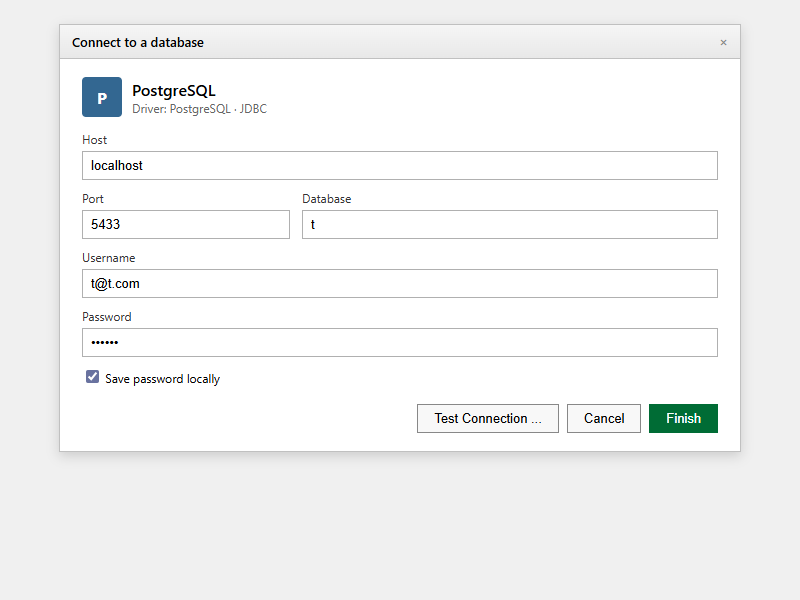
- Fill in Host, Port (
5433), Database (workspace slug, or workspace/model to scope to one model), Username, and Password. - Click Test Connection. A "Connected" dialog confirms success.
- Click Finish.
- Expand the connection in the left panel to see schemas and columns.
Connect with Tableau
- Open Tableau Desktop.
- In the Connect pane, under To a Server, select PostgreSQL.
- Enter the Gateway hostname in Server.
- Enter
5433in Port. - Enter the workspace slug in Database.
- Enter your credentials and click Sign In.
Connect with Apache Superset
- Log in to Superset.
- Go to Data > Databases > + Database.
- Select PostgreSQL as the database type.
- In the SQLAlchemy URI field, enter:
postgresql://USER:PASSWORD@HOST:5433/WORKSPACE_SLUG— replace with your Tessallite credentials and gateway address. - Click Test Connection to verify.
- Click Connect.
- Navigate to SQL Lab to run queries against Tessallite models, or create datasets from the connection for use in charts and dashboards.
Superset connects via the standard PostgreSQL driver (psycopg2). No additional driver installation is needed.
Driver note
Tessallite uses the PostgreSQL wire protocol. Use the standard org.postgresql.Driver (JDBC) or psycopg2 (Python). No special driver is required.
For PostgreSQL and Redshift sources, a valid query that returns no rows still returns its declared result columns to the JDBC gateway. Empty and non-empty results therefore have the same column shape. Use explicit SQL aliases when a portable result name is important across source engines.
Troubleshooting
| Symptom | Likely cause | Resolution |
|---|---|---|
| Connection refused on port 5433 | Gateway not running or wrong host | Verify Gateway service is up with your System Admin |
FATAL: database "X" does not exist | Wrong workspace slug | Verify slug with Tenant Admin (case-sensitive) |
Unknown model 'X' in ... or Invalid database name at connect time | Model or project slug in a scoped Database field is wrong | Check the model/project slugs with your Modeller; the error message lists the accepted formats |
| Authentication failed | Wrong username or password | Use Tessallite email and password, not source DB credentials |
| SSL error | Server requires SSL | Append ?sslmode=require to the JDBC URL |
| No tables visible | No published models | A Modeller must publish at least one model |
| New columns or tables missing after a model was just published | Your tool read the catalogue once when it connected, so a mid-session publish is not visible yet | Disconnect and reconnect the connection in your BI tool; the refreshed catalogue then shows the new model |
| A generated LookML relation reports support disabled | Optional Looker adapter is default-off | Enable LOOKER_GATEWAY_ENABLED=true only when validating a Looker-hosted project |