Excel XMLA Connection Guide
What this covers
Detailed connection reference for Microsoft Excel connecting to Tessallite via the XMLA endpoint on port 8080. For a shorter introduction, see Connect Excel via XMLA.
Prerequisites
Native Excel PivotTables connect to Tessallite's XMLA endpoint using the OLE DB Provider for Analysis Services (MSOLAP) — a Microsoft component, not part of Tessallite. Most machines with a full Office/Excel installation already have it, but it is not guaranteed on every machine or every Office channel.
Before connecting, confirm the provider is present: Data → Get Data → From Other Sources → From Analysis Services should show the connection wizard without any "provider not found" error at the very first step. If it does not, download and install the current OLE DB Driver for Analysis Services from Microsoft (search "OLE DB Driver for Analysis Services download"), matching your Excel's bitness (64-bit Excel needs the x64 driver). Run the installer as Administrator, and reboot if one is pending — a partial or non-elevated install is the most common cause of the driver appearing to install but the connection still failing (see Troubleshooting below).
XMLA endpoint details
| Parameter | Value | Notes |
|---|---|---|
| URL | http://HOST:8080/api/v1/xmla/ or https://HOST:8080/api/v1/xmla/ | Must include the /api/v1/xmla/ path and the trailing slash — the connection wizard does not accept the URL without it. Select the scheme from GATEWAY_XMLA_TLS_ENABLED and any reverse-proxy configuration; see the note below. |
| Authentication | HTTP Basic | Tessallite username and password. Basic credentials are readable by anyone on the network path unless the connection uses TLS. |
| Catalog | tenant__project__model (e.g., acme__alpha__sales) | Case-sensitive. Each published model is its own catalog. The name combines the tenant, project and model because a model name repeats across projects. |
| Protocol | XMLA 1.1 | Standard Analysis Services protocol. |
| Cube / Persona | Same name as the catalog, with __<persona> for a persona view | Selected from the cube list after connecting. A persona view (e.g. acme__alpha__sales__technical) shows only what that persona is allowed to see. |
Choosing http:// or https://
The gateway serves XMLA using one scheme selected at startup by GATEWAY_XMLA_TLS_ENABLED:
GATEWAY_XMLA_TLS_ENABLED=false(the default in local Compose) — the listener serves plain HTTP, for examplehttp://localhost:8080/api/v1/xmla/.GATEWAY_XMLA_TLS_ENABLED=true— the listener serves TLS, for examplehttps://localhost:8080/api/v1/xmla/, and its certificate and key must be configured.- A load balancer or reverse proxy may terminate TLS before forwarding to a plain-HTTP gateway. In that case the client still uses the proxy's published
https://URL.
This is not a formatting preference. Authentication is HTTP Basic, so a plain-HTTP connection to a remote gateway puts your username and password on the network in a trivially readable form. The machine where Excel runs does not determine the scheme; the deployment setting and published URL do. A plain-HTTP listener does not answer https://, and a TLS listener does not answer http://.
When the gateway runs in a container on your own machine
If the gateway runs inside Docker Desktop on the same Windows machine as Excel, use the machine's own network address rather than localhost. Keep the scheme selected by GATEWAY_XMLA_TLS_ENABLED, for example http://192.168.1.20:28080/api/v1/xmla/ for false or https://192.168.1.20:28080/api/v1/xmla/ for true.
Excel connects through the Windows OLE DB stack, and on the container loopback path that stack can sit waiting for tens of seconds with nothing happening at the gateway. What you see is a long hourglass, wizard steps that take far longer than they should, and eventually "the query could not be executed" — a client-side timeout, not a Tessallite error. The same connection through the machine address responds immediately. To find the address, run ipconfig in a command prompt and use the IPv4 address of your active adapter.
Also tick the box that saves the password when Excel offers it. Without a saved password Excel re-opens Microsoft's credential dialog every time it starts a new session, which looks like the same stall.
Connect Excel to Tessallite
- Open Excel.
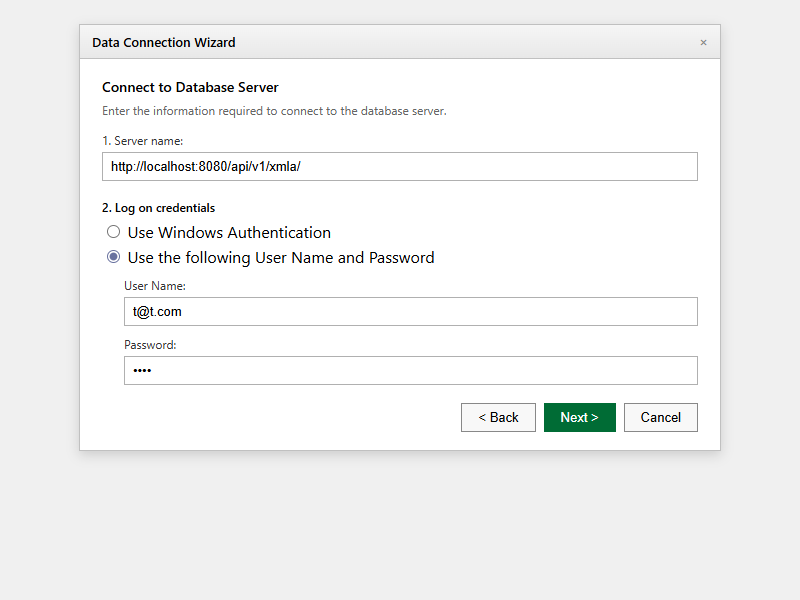
- Go to Data → Get Data → From Other Sources → From Analysis Services.
- In Server name, enter the published XMLA URL with the scheme selected by
GATEWAY_XMLA_TLS_ENABLED(the trailing slash is required). For a direct listener, usehttp://HOST:8080/api/v1/xmla/when the setting isfalseandhttps://HOST:8080/api/v1/xmla/when it istrue. - Under Log on credentials, select Use the following User Name and Password.
- Enter your Tessallite username (email) and password.
- Click Next.
- Select the model you want from the database dropdown. Entries are named
tenant__project__model. - Select the matching entry from the cube list. To use a persona view instead of the full model, pick the entry ending in
__<persona>. - Click Next, then Finish.
- In Import Data, select PivotTable Report and click OK.
A PivotTable is inserted. The field list on the right shows the model's dimensions and measures.
Create a PivotTable
Drag dimensions to Rows or Columns and measures to Values. Excel sends MDX queries to Tessallite, which routes them to the fastest available source.
Supported PivotTable features
| Feature | Status | Notes |
|---|---|---|
| Expand / collapse hierarchies | Supported | Click +/- on row/column headers. Works with all hierarchy types. |
| Subtotals and grand totals | Supported | SUM, COUNT, DISTINCT COUNT, MIN, MAX, and source-weighted AVG values render at the visible nested PivotTable grains. A failed required grain returns a query error rather than partial totals. |
| Show Values As | Supported | % of Grand Total, % of Parent, Difference From, % Difference From, Running Total, Rank (Largest/Smallest), Index. |
| Calculated Fields | Supported | Insert Calculated Field for arithmetic expressions, ratios, and IIF conditionals. |
| Value Filters (Top 10, >=, etc.) | Supported | Right-click a field > Value Filters. Top N, Bottom N, and comparison operators. |
| Label Filters (Contains, etc.) | Supported | Subselect-based member filtering. |
| Date Grouping | Supported | Right-click a date field > Group. Groups by Year, Quarter, Month via hierarchy levels. |
| GETPIVOTDATA | Supported | Cell formulas that reference specific PivotTable intersections. |
| Number Formatting | Supported | FORMAT_STRING from model definitions flows through to all cells including subtotals and calculated members. |
| Manual Member Selection | Supported | Filter dropdowns on row/column fields. |
| Custom Grouping | Not supported | Right-click > Group on non-date members. Requires MDX Aggregate() over member sets. |
| Calculated Items | Not supported | Insert Calculated Item on a dimension. Requires dimension-level member aggregation. |
Refresh data
Right-click anywhere in the PivotTable and select Refresh to re-query Tessallite.
To set automatic refresh: Data → Queries & Connections → right-click the connection → Properties → Usage tab → enable Refresh every N minutes.
Saved workbooks and credentials
Excel does not store your password inside the .xlsx file — only the username and server URL are saved. When you reopen a saved workbook (especially after Enable Content), Excel may prompt again for password and catalog via Microsoft's native MSOLAP connection dialog (this is Excel/OLE DB UI, not Tessallite).
On some Windows setups that dialog opens minimised or behind the Excel window. If Refresh appears to hang with an hourglass and no error:
- Alt+Tab or minimise Excel to find the hidden credential dialog.
- Re-enter password and catalog, then click OK.
- On first connect, save the password if Excel offers it (Windows Credential Manager), so reopen skips the prompt.
Manage connection properties
- Go to Data → Queries & Connections.
- Right-click the Tessallite connection → Properties.
- Definition tab: modify connection string and command text.
- Usage tab: set refresh intervals and open-file behavior.
Troubleshooting
| Problem | Likely cause | Fix |
|---|---|---|
| Cannot connect / "Unable to connect" | Wrong URL format or port blocked | Verify the URL includes /api/v1/xmla/ and its required trailing slash. Select http:// or https:// from GATEWAY_XMLA_TLS_ENABLED and any reverse-proxy configuration, then test the published URL with curl -v. |
| Cannot connect, host confirmed running | Scheme does not match how the gateway is published | Check GATEWAY_XMLA_TLS_ENABLED and any reverse proxy. A TLS listener does not answer http:// and a plain-HTTP listener does not answer https://. Confirm the published URL with your System Administrator. |
| "Catalog not found" | Wrong catalog name | Use the full tenant__project__model name exactly as it appears in the database dropdown (case-sensitive). |
| "Catalog ... is ambiguous" | An older workbook saved a bare model name that now matches models in more than one project | Reconnect using the full tenant__project__model name. The server refuses to guess, because guessing could return another project's data. |
| "Authentication failed" | Wrong credentials | Reset Tessallite password via Admin panel. |
| Wizard steps and refreshes pause for 15-45 seconds, then "the query could not be executed" | Excel is connecting to a containerised gateway through localhost, or re-prompting because no password was saved | Reconnect using the machine's own IPv4 address instead of localhost, and save the password when Excel offers it. |
| "No cubes found" | No published model | Ask Modeller to save and publish the model in Model Builder. |
| Excel cached a bad connection | Stale connection | Data → Queries & Connections → Delete connection → reconnect from scratch. |
| "Provider cannot be found. It may not be properly installed." | The MSOLAP OLE DB provider (see Prerequisites above) is missing or only partially registered | Reinstall the OLE DB Driver for Analysis Services as Administrator (use the installer's Repair option if it is already listed in Programs and Features), matching your Excel's bitness, then reboot if a restart is pending before retrying. |
| Refresh spins (hourglass) after reopening a saved workbook | Excel's native MSOLAP credential dialog opened minimised or behind the workbook, waiting for password/catalog input | Alt+Tab or minimise Excel to find Microsoft's connection dialog (not Tessallite). Re-enter credentials. Save password on first connect if offered. |