Power BI Connection Guide
What this covers
This guide walks you through connecting Power BI Desktop to Tessallite. The supported method is the PostgreSQL connector on port 5433, using DirectQuery mode so that every visual in your report queries Tessallite in real time and benefits from semantic-layer acceleration.
A separate section below explains why the Analysis Services connector does not work with Power BI Desktop and what to do if you encounter it.
Connect Power BI to Tessallite (PostgreSQL connector)
Power BI Desktop connects to Tessallite through the same JDBC gateway that other SQL tools use. Tessallite listens on port 5433 and speaks the PostgreSQL wire protocol, so Power BI treats it as a standard PostgreSQL database.
Step-by-step
- Open Power BI Desktop.
- Click Get Data on the ribbon (or File > Get Data).
- In the list that appears, choose Database on the left, then PostgreSQL database on the right. Click Connect.
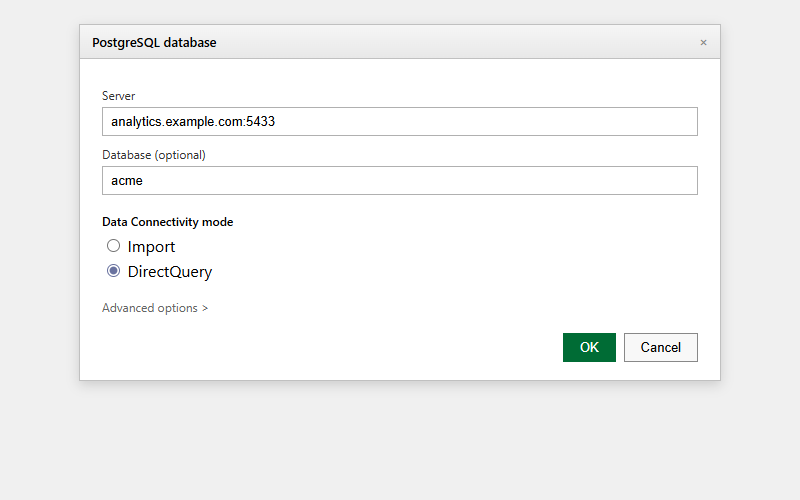
- Fill in the connection dialog:
- Server: your Tessallite host followed by a colon and the port number.
- Local development:
localhost:5433 - Hosted demo:
sql.cloud.tessallite.io:5433
- Local development:
- Database: the workspace slug (also called the tenant slug). For example,
acme-demo. To connect directly to a single model, you can also useacme-demo/modelx(workspace/model) oracme-demo/project1/modelx(workspace/project/model). See the JDBC Connection Guide for the full format reference. - Data Connectivity mode: choose DirectQuery. This is the recommended setting because it keeps queries flowing through Tessallite at report refresh time, so aggregate routing and acceleration remain active.
- Server: your Tessallite host followed by a colon and the port number.
- Click OK.
- Power BI asks for credentials. Choose Database as the authentication type.
- User name: your Tessallite login email (for example,
admin@acme-demo.com). - Password: your Tessallite password (for example,
acme-demofor the demo workspace).
- User name: your Tessallite login email (for example,
- Click Connect.
- In the Navigator that appears, you will see the models published in the workspace. Select the tables you want, then click Load or Transform Data.
Worked example using the demo workspace
| Field | Value |
|---|---|
| Server | localhost:5433 |
| Database | acme-demo |
| Data Connectivity mode | DirectQuery |
| Authentication type | Database |
| User name | admin@acme-demo.com |
| Password | acme-demo |
After connecting, the Navigator shows every published model in the acme-demo workspace. Select a table (for example, modelx) and click Load to start building visuals.
What each field means
| Field | What to enter | Why |
|---|---|---|
| Server | HOST:5433 | Tells Power BI where the Tessallite gateway is listening. Always include the port number. |
| Database | Workspace slug | Tells Tessallite which workspace (tenant) you want to query. You can optionally scope it to a single model. |
| Data Connectivity mode | DirectQuery (recommended) | Keeps queries live so Tessallite can route them through aggregates and pockets for speed. |
| Authentication type | Database | Tessallite uses email-and-password credentials, which maps to the Database option in Power BI. |
DirectQuery vs Import mode
| Mode | How it works | Recommendation |
|---|---|---|
| DirectQuery | Power BI sends a query to Tessallite every time a visual refreshes. Tessallite routes to the fastest available path (aggregate, pocket, or source). | Recommended. You get live acceleration and governed routing. |
| Import | Power BI downloads the full result set once and stores it locally. All visuals query the local cache. | Use only for small, rarely changing datasets. You lose live acceleration after the import step. |
If you choose Import mode, Tessallite's aggregate routing still applies during the initial import, but once the data is cached locally, Power BI no longer sends queries to Tessallite. Any new aggregates or data changes will not appear until you re-import.
How Power BI queries work with Tessallite
Power BI Desktop generates SQL that differs from traditional BI tools. When you drag dimensions and measures onto a visual, Power BI may send a flat SELECT with no GROUP BY clause, table aliases like "$Table", and column aliases on every column. Tessallite handles all of these patterns automatically.
Ungrouped queries (raw route)
When Power BI sends a query with no GROUP BY, such as SELECT "region", "amount" FROM "project1"."modelx", Tessallite detects this and routes it through the raw path. The raw path returns individual rows from the source database instead of aggregated results. Joins defined in the model are applied as LEFT JOINs so that all rows from the fact table appear, even when a related dimension table has no matching row.
If a dimension belongs to a table that is not reachable through the model's join graph, the column still appears in the result with a type-preserving NULL value (for example, CAST(NULL AS TEXT) for a text column). This keeps the result schema stable regardless of join topology.
Aggregate-only queries
If every column in the SELECT is an aggregate function (such as SELECT COUNT(*) FROM "modelx"), Tessallite routes the query through the normal semantic path, not the raw path. This preserves correct aggregation behaviour for summary queries that Power BI generates when computing totals.
Grouped queries (normal path)
Queries that include a GROUP BY clause follow the standard Tessallite routing: the query-router checks for matching aggregates and pockets, and falls back to the source path when no pre-computed summary covers the query.
Table aliases and column aliases
Power BI's PostgreSQL connector wraps tables with AS "$Table" and adds AS "column_name" on every column. Tessallite strips these automatically before routing.
Power BI Gateway for scheduled refresh
If Tessallite is on a private network, Power BI Service cannot reach it for scheduled refresh. Install an on-premises data gateway on a machine with network access to the Tessallite host, then associate the dataset with the gateway in Power BI Service.
Why the Analysis Services connector does not work with Power BI Desktop
Power BI Desktop has two connectors that look like they could talk to Tessallite:
- PostgreSQL database (the recommended method, described above).
- SQL Server Analysis Services database (the "Analysis Services" or "SSAS" connector).
The Analysis Services connector supports only Windows authentication (Kerberos/NTLM). This is a documented Microsoft limitation. When you enter a Tessallite XMLA URL and click Connect, Power BI sends a Windows authentication handshake. Tessallite's XMLA endpoint expects HTTP Basic credentials (email and password), so the two cannot agree on an authentication method. The connection fails.
This limitation applies only to Power BI Desktop. Excel is not affected. Excel's MSOLAP provider speaks HTTP Basic and connects to Tessallite's XMLA endpoint without any issue. If you need the Analysis Services experience with hierarchies and DAX, use Excel -- see the Excel XMLA Connection Guide.
What about "Connect live" and other Analysis Services options?
All connection modes offered by the Analysis Services connector in Power BI Desktop (Connect live, Import, DirectQuery where available) use the same Windows authentication handshake. Changing the mode does not fix the authentication mismatch.
When could this change?
A future version of the Tessallite gateway may add Windows authentication (Negotiate/SPNEGO) support, which would allow Power BI Desktop's Analysis Services connector to authenticate. This is logged as a future enhancement and is not available today.
Troubleshooting
| Symptom | Likely cause | Resolution |
|---|---|---|
| Cannot connect (PostgreSQL method) | Wrong host or port | Confirm Server field is HOST:5433. |
| Authentication failed | Wrong credentials or auth type | Use Database auth with your Tessallite email and password. Do not use Windows authentication. |
| Analysis Services connector fails after entering credentials | Windows authentication mismatch | Power BI Desktop's Analysis Services connector only supports Windows authentication. Use the PostgreSQL connector instead (see the steps at the top of this guide). |
| Data looks stale after changes in Tessallite | Import mode is caching old data | Switch to DirectQuery, or manually refresh the dataset in Import mode. |
| Scheduled refresh fails in Power BI Service | Private network | Install and configure an on-premises data gateway. |
| Ungrouped query returns NULLs for some columns | Disconnected table in model | Expected behavior: columns from unreachable tables show typed NULL values. |
| COUNT(*) returns unexpected result count | Aggregate-only guard active | Aggregate-only queries route through the semantic path, not the raw path. |
Best practices
- Always use DirectQuery unless you have a specific reason to import. DirectQuery preserves Tessallite's acceleration and governance for every visual refresh.
- Scope the database field to one model (e.g.
acme-demo/modelx) when building a single-model report. This avoids loading all models in the Navigator. - Do not use the Analysis Services connector in Power BI Desktop. It will not work with Tessallite's authentication. Use the PostgreSQL connector.
- Use Excel for XMLA/DAX features. If your report needs hierarchies, drill-down, or DAX expressions, connect from Excel using the XMLA endpoint. See the Excel XMLA Connection Guide.